First, verify that the firmware is compatible with the SSDC version installed on the computer, by checking the list on the
Release notes through the
official webpageSafety Suite Device Configurator - Online upgrade (Having Internet service)Option#1
- Go to the Device Inventory/List and click on the Refresh button to see the connected devices
- Enable the checkbox next to the device serial number and above a blue toolbar will appear, select the Update firmware button.
- Follow the status of the process on the Notifications queue.
- Once the message Firmware updated appears on the top, click on the Refresh button again to see the new firmware version on the devices list.
Option#2
- Go to the Device Inventory/List and click on the Refresh button to see the connected devices
- Click over the device serial number
- On the Device Details screen, below the Firmware Version section, click the UPDATE button
- Follow the status of the process on the Notifications queue.
- The page is refreshed and the new firmware version is listed.
Safety Suite Device Configurator - Offline upgrade (use this option if you wish to refresh the firmware or downgrade the firmware)
This option can be activated in two ways:
- Having a computer with no internet access or
- Enabling the Firmware updates using local file option ( Settings -> System Settings -> Local Settings)
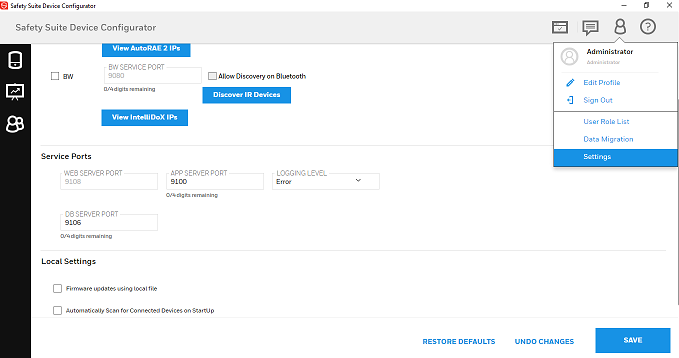
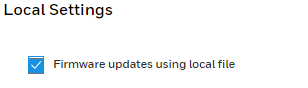
Firmware should be gotten under RFP format (this format belongs to Safety Suite Device Configurator), you can get the file by clicking on the following link
Gas Detection Software and Firmware siteFor the units:
- Go to the Device Inventory/List and click on the Refresh button to see the connected devices
- There are two ways to select the firmware file:
- Enable the checkbox next to the device serial number and above a blue toolbar will appear, select the Update firmware button
- Or clicking on the device serial number to open the Device Details.
- Below the Firmware Version section, click the UPDATE button
- Select the RFP file to use and click on the Update button.
- Follow the status of the process on the Notifications queue.
- Once the message Firmware updated appears on the top, click on the Refresh button again to see the new firmware version on the devices list.